Caplin Management Console API 8.0.0-522-fca6966
This API guide is intended as an aid to developers that are writing custom views for the Caplin Management Console (CMC).
The Caplin Management Console (CMC) is a cross-platform Java Swing application designed to monitor Caplin Platform components using Java JMX technology (Java Management Extensions). The CMC provides several standard views that enable a user to monitor and manage Caplin Platform components with intuitive, domain-centric user-interfaces. Through the use of this API, developers can supplement the CMC with additional custom views.
Contents
- Overview
- Caplin Management Console Architecture
- XML Configuration Files
- View Interface
- Adding a New View to the Console
- Logging Configuration
Overview
All key Caplin Platform components support JMX monitoring. Examples are Caplin Liberator, Java and 'C' Datasources and Caplin Transformer. These components provide a base set of JMX MBeans that allows the CMC to link them together according to their connections, and to display a core set of overview screens related to connectivity and logging. In addition, the CMC provides a generic JMX explorer that can be used to view all the JMX MBeans exposed by the individual components. This can be used by power users or Caplin engineers to diagnose live system problems.
From the CMC enterprise view, users can drill down into the JMX server components by opening individual tabbed console windows for each server.
The tabs shown within the console are configured by XML files. Each server component identifies its type (via a JMX attribute) and the CMC uses this information to load the related XML configuration file (for example, a server component that identifies itself as a datasource will lead to the console loading the console_datasrc.xml file).
Caplin Management Console Architecture
The CMC has two main windows:
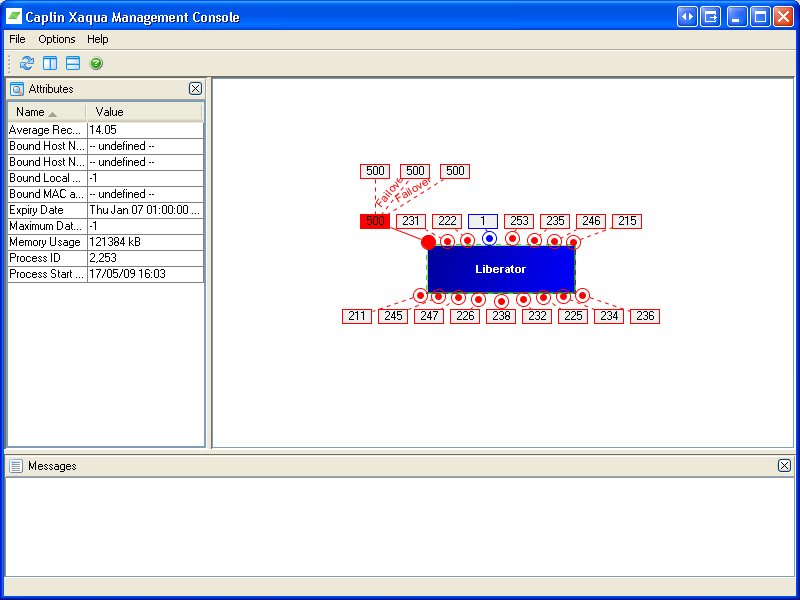
Overview window
The Overview window shows a connected graph of all Caplin components
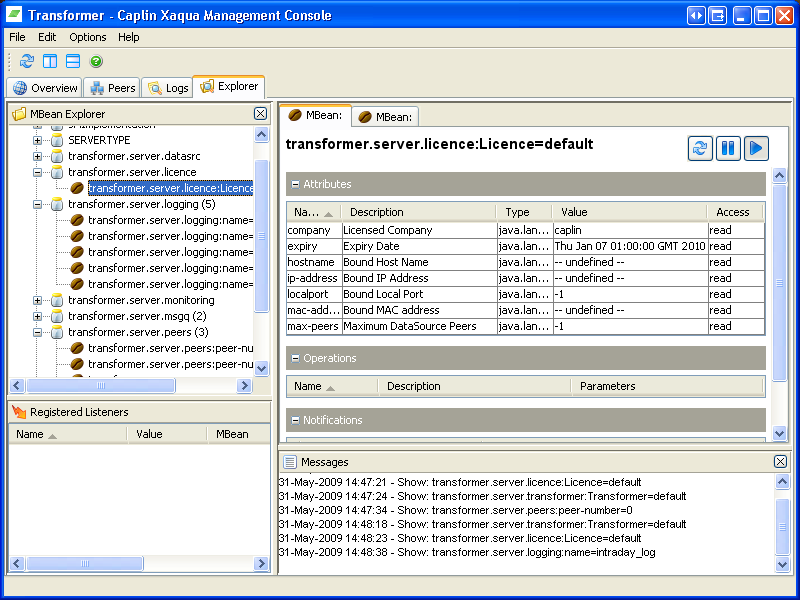
Console window
The Console window shows a detailed, multi-tab window for a single component. Multiple versions of this window may be opened at a time, one for each component.
XML Configuration Files
All configuration files are stored in the conf directory of the CMC installation. The files are as follows:
- EnterpriseConsole.xml - The configuration file for the overview window, specifying the MBean attributes that are displayed in the left hand frame for a particular component type
- console.xml - The base configuration file for CMC windows, specifying a set of base menu/toolbar options
- console_[server-type].xml - One configuration file for each server-type (for example, console_datasrc.xml), specifying the views to display in the CMC for this type of component.
- view_[view-name].xml - Configuration for a particular view (for example, view_datasource_overview.xml), specifying the Java class to load, the name to be used on the tab, the help text topic, and so on.
The full definition of these XML files can be found in the associated dtd's in the dtd directory.
Example EnterpriseConsole.xml
This file specifies the JMX MBean attributes that are displayed in the left hand frame when a particular component type (DataSource, Liberator, ...) is selected.
<?xml version="1.0" encoding="UTF-8"?>
<!DOCTYPE EnterpriseConsole SYSTEM "dtd/EnterpriseConsole.dtd">

<EnterpriseConsole>
   <AttributeLists>
      <AttributeList Type="datasrc">
         <MBean Name="~.server.system:System=default">
            <Attribute Name="process-start-time" />
            <Attribute Name="memory-usage" />
            <Attribute Name="cpu-usage" />
            <Attribute Name="process-id" />
         </MBean>
         <MBean Name="~.server.licence:Licence=default">
            <Attribute Name="expiry" />
            <Attribute Name="max-peers" />
            <Attribute Name="localport" />
            <Attribute Name="hostname" />
            <Attribute Name="mac-address" />
         </MBean>
      </AttributeList>
      <AttributeList Type="transformer">
         <MBean Name="~.server.transformer:Transformer=default">
            <Attribute Name="~-version" />
            <Attribute Name="~-build-number" />
            <Attribute Name="page-updates" />
            <Attribute Name="record-updates" />
            <Attribute Name="updates-received" />
            <Attribute Name="updates-sent" />
         </MBean>
         <MBean Name="~.server.system:System=default">
            <Attribute Name="process-start-time" />
            <Attribute Name="memory-usage" />
            <Attribute Name="cpu-usage" />
            <Attribute Name="process-id" />
         </MBean>
         <MBean Name="~.server.licence:Licence=default">
            <Attribute Name="expiry" />
            <Attribute Name="max-peers" />
            <Attribute Name="localport" />
            <Attribute Name="hostname" />
            <Attribute Name="mac-address" />
         </MBean>
      </AttributeList>
      <AttributeList Type="priceMaster">
         <MBean Name="~.server.transformer:Transformer=default">
            <Attribute Name="~-version" />
            <Attribute Name="~-build-number" />
            <Attribute Name="page-updates" />
            <Attribute Name="record-updates" />
            <Attribute Name="updates-received" />
            <Attribute Name="updates-sent" />
         </MBean>
         <MBean Name="~.server.system:System=default">
            <Attribute Name="process-start-time" />
            <Attribute Name="memory-usage" />
            <Attribute Name="cpu-usage" />
            <Attribute Name="process-id" />
         </MBean>
         <MBean Name="~.server.licence:Licence=default">
            <Attribute Name="expiry" />
            <Attribute Name="max-peers" />
            <Attribute Name="localport" />
            <Attribute Name="hostname" />
            <Attribute Name="mac-address" />
         </MBean>
      </AttributeList>
      <AttributeList Type="liberator">
         <MBean Name="~.server.system:System=default">
            <Attribute Name="process-start-time" />
            <Attribute Name="memory-usage" />
            <Attribute Name="cpu-usage" />
            <Attribute Name="process-id" />
         </MBean>
         <MBean Name="~.server.licence:Licence=default">
            <Attribute Name="expiry" />
            <Attribute Name="max-peers" />
            <Attribute Name="localport" />
            <Attribute Name="hostname" />
            <Attribute Name="mac-address" />
         </MBean>
      </AttributeList>
   </AttributeLists>
   <Servers>
   </Servers>
</EnterpriseConsole>
|
Example console.xml
This file defines the base menu/toolbar for all CMC windows.
Individual views (tabs) can merge their menu/toolbar options at the
points defined by theMergePoint XML elements.
<?xml version="1.0" encoding="UTF-8"?>
<!DOCTYPE Console SYSTEM "dtd/Console.dtd">
   <Console>
      <Menus>
         <Menu Name="File">
            <MergePoint/>
            <Action Name="Exit"/>
         </Menu>
         <MergePoint/>
         <Menu Name="Help">
            <MergePoint/>
            <Action Name="Help"/>
         </Menu>
      </Menus>

      <ToolBar>
         <MergePoint/>
         <Action Name="Help"/>
      </ToolBar>
   </Console>
|
Example console_[server-type].xml: console_datasrc.xml
Each server-type has its own set of views defined in an XML file called
console_[server-type].xml.
This example shows that for any DataSource that returns the 'datasrc' type
in its SERVERTYPE.server_type attribute, four views will be
displayed in the CMC. The four views are overview, peers, logging and explorer.
<?xml version="1.0" encoding="UTF-8"?>
<!DOCTYPE ConsoleConfig SYSTEM "dtd/ConsoleConfig.dtd">
<ConsoleConfig>
   <Properties>
   </Properties>
   <Views>
      <View Id="datasource_overview"/>
      <View Id="datasource_peers"/>
      <View Id="datasource_logging"/>
      <View Id="explorer"/>
   </Views>
</ConsoleConfig>
|
Example view_[view-name].xml: view_datasource_overview.xml
Each CMC view has its own XML configuration file, defining its Java class, name, help topic, icon and so on. It also defines menu/toolbar options that will be merged with the existing CMC menu/toolbar. In this example a new Edit menu with a Refresh option will be added. A Refresh icon will also be added to the existing toolbar.
<?xml version="1.0" encoding="UTF-8"?>
<!DOCTYPE View SYSTEM "dtd/View.dtd">
<View>
   <Class>com.caplin.view.overview.OverviewView</Class>
   <Name>Overview</Name>
   <LongDescription>Datasource Overview</LongDescription>
   <HelpTopic>two</HelpTopic>
   <Icon>/conf/environment.png</Icon>

   <Menus>
      <Menu Name="Edit">
         <Action Name="Refresh"/>
      </Menu>
   </Menus>

   <ToolBar>
      <Action Name="Refresh"/>
   </ToolBar>
</View>
|
View Interface
View classes (tabs in a server component's CMC window) must implement the
View interface and extend a Swing JPanel.
public interface View
{
/**
* Called by the server's Console when view is first loaded to initialise the view and pass
* Console and view properties.
* @param Console the parent Console
* @param properties a properties object to configure the view
*/
void init(Console console, Properties properties);
/**
* Called by the Console if the view has marked itself as dirty, to allow the
* view to save its updated state.
*/
void save();
/**
* Called by the Console to retrieve the views configuration properties that the
* Console will save in the configuration XML and pass back to the view the next
* time it is initialized in the
|
Adding a New View to the CMC
To add a new view you must:
- Create a
JPanelderived class that implements theViewinterface - Create a view_[viewname].xml file that describes your view to the CMC and defines any menu/toolbar options to add
- Add a
<View Id="<viewname>"/>element to the console_[server-type].xml file for the server type(s) that should display this view.
Example View class:
public class TestView extends JPanel implements View
{
   private static Logger log = Logger.getLogger(TestView.class.getName());

   private Console console;

   private List actions;

   private Color backColor;

   public TestView()
   {
      backColor = Color.WHITE; // set default value

      // load list of actions to be exposed
      actions = new ArrayList();
      actions.add(new SetBlueAction());

      // put something on panel

      JButton b = new JButton("make it white!");
      add(b);
      b.addActionListener(new ActionListener()
      {
         public void actionPerformed( ActionEvent e )
         {
            backColor = Color.white;
            setBackground(backColor);
            console.setDirty(TestView.this, false);
         }
      });
   }

   /**
    * Called by console to initialize this view
    */
   public void init( Console console, Properties properties )
   {
      this.console = console;
      // try to read color property
      String colorProperty = (String)properties.get("Color");
      if (colorProperty != null)
      {
         if (colorProperty.equals("White"))
         {
            backColor = Color.WHITE;
         }
         else if (colorProperty.equals("Blue"))
         {
            backColor = Color.BLUE;
         }
      }

      setBackground(backColor);

      // listen and log console events
      console.addConsoleListener(new ConsoleListener()
      {
         public void viewChanged( View view )
         {
            log.info("viewChanged");
         }

         public void viewLoaded( View view )
         {
            log.info("viewLoaded");
         }

         public void closing()
         {
            log.info("closing");
         }

         public void connectionStateChanged( boolean connected )
         {
            log.info("connection changed");
         }
      });
   }

   /**
    * Called by the Console if the view has marked itself as dirty, to allow
    * the view to save its updated state to persistent storage.
    */
   public void save()
   {
   }

   /**
    * Called by Console to retrieve the set of properties that must be saved
    * in the XML for this view
    */
   public Properties getProperties()
   {
      // save background color as property
      Properties properties = new Properties();
      if (backColor == Color.WHITE)
      {
         properties.put("Color", "White");
      }
      else if (backColor == Color.BLUE)
      {
         properties.put("Color", "Blue");
      }
      return properties;
   }

   /**
    * Called by Console to retrieve the list of actions exposed by this view.
    * The action names of these actions are used, via the view XML file, to populate
    * menu and toolbar options
    */
   public List getActions()
   {
      return actions;
   }

   /**
    * Convenience method for passing console instance to other classes
    */
   public Console getConsole()
   {
      return console;
   }

   /**
    * Called by the Console to send messages from other views, not implemented here
    */
   public void processMessage( String messageId, Map messageData )
   {
   }

   /**
    * An example action to set the background color to blue
    */
   class SetBlueAction extends AbstractAction
   {
      public SetBlueAction()
      {
         // this is the action name used in the view xml to
         this.putValue(Action.ACTION_COMMAND_KEY, "SetBlue");

         // populate menu and toolbar options
         this.putValue(Action.NAME, "Set Blue"); // menu item name
         this.putValue(Action.SHORT_DESCRIPTION, "Set the background blue"); // tooltip
         this.putValue(Action.MNEMONIC_KEY, new Integer(java.awt.event.KeyEvent.VK_B));
      }

      public void actionPerformed( ActionEvent e )
      {
         backColor = Color.BLUE;
         TestView.this.setBackground(backColor);
         console.setDirty(TestView.this, true);
      }
   }
}
|
Console Interface
The other important interface is the Console interface, which allows
views to interact with their container. Each view is passed a reference
to the Console as a parameter to its init() method.
/**
* Defines the interface exposed by the Console that is available for Views
*/
public interface Console
{
/**
* Gets the JMX MBeanServerConnection for the current connection
* @return the current MBeanServerConnection
*/
MBeanServerConnection getJMXConnection();
/**
* Gets the current status message displayed by the console
* @return the status message string
|
Logging Configuration
The CMC comes with a default logging configuration that may be customised as desired. The default logging configuration is a standard JDK logging file customised for use in the CMC. It can be found at conf/cmc.logging.properties within your CMC installation.
The default configuration logs to a file located at logs/cmc.log within you CMC installation. You may customize the logging configuration if you wish, or provide an alternative configuration by replacing the default logging configuration. The out-of-the-box configuration can be restored at any time by deleting the configuration at conf/cmc.logging.properties and restarting the CMC. The CMC will extract the original default configuration from within its jar file if it is not present on the filesystem but will not overwrite it if is present - so local modifications are never overwritten.
You can also provide your own logging configuration by setting the property java.util.logging.config.file to point to your desired logging configuration on the
command line. For example:
java -Djava.util.logging.config.file=myLoggingConfig.properties -jar cmc.jar
Note:
- The file must conform to the JDK's standard logging properties format.
- You must specify properties before the
-jaroption when using it with thejavacommand.