# Installing the Refiner Service
In Transformer, data transformation services are implemented in Transformer Modules. Caplin provides a Transformer module called _Refiner_ that allows large lists of data ([containers](../datasource/datasource-containers.md)) to be efficiently filtered and sorted in real time on behalf of client applications. Refiner is supplied as a [Service blade](../deployment-framework/cdf-blade-types.md) that’s deployed in the [Caplin Platform Deployment Framework](../deployment-framework/index.md). This tutorial shows you how to deploy the Refiner blade and use it to sort and filter container responses.
Once you’ve completed the steps on this page, you should be familiar with how to deploy Refiner and how to request filtered and sorted data via Transformer.
- 💡 TIP
-
In these instructions you’ll be using the `dfw` command of the Deployment Framework. Before entering any `dfw` command as `./dfw `, make sure your current (working) directory is set to the Deployment Framework’s topmost directory.
In file paths, we’ve called this topmost directory ``
For a list of `dfw` commands, [click here](../deployment-framework/cdf-the-deployment-framework-command-utility-dfw.md).
## 1. Install a Deployment Framework, Liberator and Transformer
* Make sure you’ve [installed a Deployment Framework](../deployment-framework/cdf-installing-the-deployment-framework.md) and have deployed a Liberator and Transformer (see How can I... [Deploy Platform components to the Framework](../deployment-framework/cdf-deploy-platform-components-to-the-framework.md)).
* The Framework has a built-in demonstration Adapter blade called **DemoDataSource** that you’ll use to show that Refiner is working. Make sure the DemoDataSource blade is active, by running the following [dfw command](../deployment-framework/cdf-the-deployment-framework-command-utility-dfw.md) from the `` directory:
```
./dfw xref:../deployment-framework/cdf-the-deployment-framework-command-utility-dfw.md#activate[activate] DemoDataSource
```
You can verify that the blade has been activated, by running the command:
```
./dfw xref:../deployment-framework/cdf-the-deployment-framework-command-utility-dfw.md#versions[versions]
```
## 2. Deploy the Refiner Service blade
1. The Refiner Service blade is supplied in a zip file with a name like `CPB_RefinerService--.zip`
To deploy it, follow the instructions in [To deploy the blade kits](../deployment-framework/cdf-deploy-platform-components-to-the-framework.md#to-deploy-the-blade-kits) and [Check what’s been deployed](../deployment-framework/cdf-deploy-platform-components-to-the-framework.md#check-whats-been-deployed) in How can I... [Deploy Platform components to the Framework](../deployment-framework/cdf-deploy-platform-components-to-the-framework.md).
Once deployed, the blade is active.
2. Ensure the Transformer is licensed to use the Java Transformer Module.
The Transformer licence file is in <Framework_root>/global_config/licenses/**license-transformer.conf** and should contain the line:
```
module jtm transformer
```
**📌 NOTE**\
If the licence file doesn’t contain this line, please contact Caplin Support to get a Java Transformer Module licence.
3. Set up the path to the Java Virtual Machine (JVM).
If your Java installation is a standard JDK installation, you don’t need to change this path. But if the Java installation is non-standard, set it up by running the command
```
./dfw xref:../deployment-framework/cdf-the-deployment-framework-command-utility-dfw.md#java[java]
```
The `` parameter must be a Linux style pathname with forward slash (/) separators, even if it’s a Windows path. Don’t use Windows-style backslash (\) separators - the command won’t find the path.
## 3. Check the Refiner service is available
1. Start the Liberator, Transformer and DemoDataSource adapter, by running `./dfw [start](../deployment-framework/cdf-the-deployment-framework-command-utility-dfw.md#start)` from the `` directory.
2. Log on to Liberator from a web browser and navigate to the status page (for details of how to do this, see [Check the Liberator is running correctly](../liberator/liberator-installing-liberator.md#check-liberator-running-correctly) in [Installing Liberator](../liberator/liberator-installing-liberator.md)).
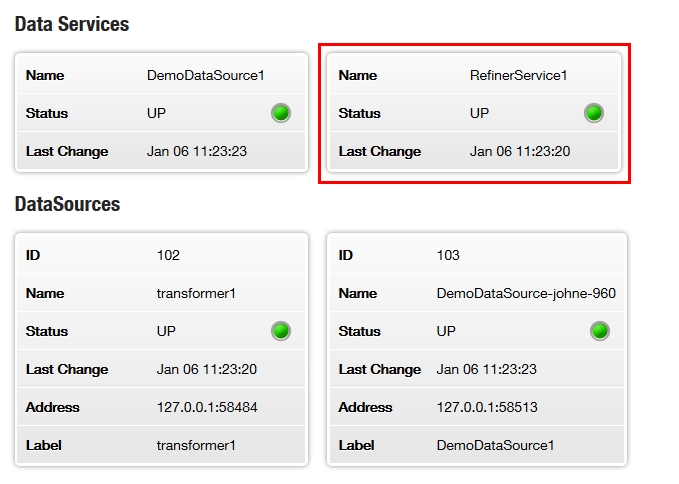
The Liberator should recognise the following data services and DataSources. In particular, the status page should show a data service for the Refiner Service, as highlighted in red here:
3. Stop the Liberator, Transformer and DemoDataSource adapter, by running `./dfw [stop](../deployment-framework/cdf-the-deployment-framework-command-utility-dfw.md#stop)` from the `` directory. This is so you can examine various log files to check Transformer’s working correctly.
4. Examine the log file `/servers/Transformer/var/jtm.log`
If the Transformer is working correctly, this log contains the version number of the Transformer Module library:
```
+0000: INFO: Java Transformer module (6.2.0-297741) starting up
+0000: INFO: Loading user class with identifier jtm
+0000: CRIT: Thread [main/1]: Product: Java Transformer Module
Version : 6.2.3-bbbbbb
Build Date : dd-Mon-yyyy
Build Time : hh:mm
Build Number : bbbbbb
Copyright : Copyright 1995-2014 Caplin Systems Ltd
```
In the same log file, you should also see Caplin Refiner registering as a provider for the namespace it uses:
```
2011/12/16-15:41:05.703 +0000: INFO: Registering as a provider of
```
5. Examine the log file `/servers/Transformer/var/refiner.log`
If Caplin Refiner is working correctly, this log contains its version number:
```
+0000 - Thread [main/1]: SEVERE: Refiner 6.2.3-bbbbbb
```
6. If everything looks ok, restart the Liberator, Transformer and DemoDataSource adapter, by running `./dfw start`
7. Log on to Liberator from a web browser and navigate to the Liberator Explorer page:
1. From the menu on the Liberator’s home page, select **Diagnostics**
2. On the Diagnostics page that’s displayed, select the Liberator Explorer link.
**💡 TIP**\
For more about using [Liberator Explorer](../liberator/liberator-liberator-explorer.md), see How can I... [Use Liberator Explorer to request and send data](../liberator/liberator-use-liberator-explorer-to-request-and-send-data.md).
## 4. Request an unfiltered container
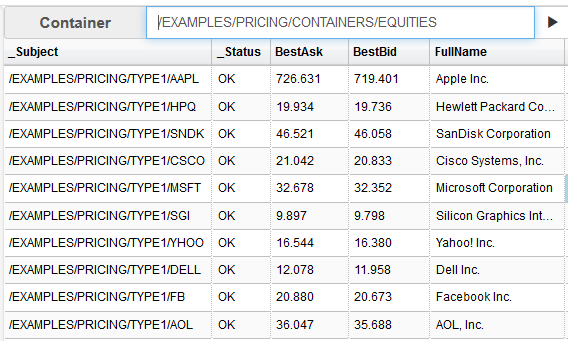
The DemoDataSource adapter can supply a container called `/EXAMPLES/PRICING/CONTAINERS/EQUITIES` that’s populated with stock prices.
Use Liberator Explorer to request `/EXAMPLES/PRICING/CONTAINERS/EQUITIES`. This returns the un-filtered and un-sorted container:
## 5. Filter the container contents
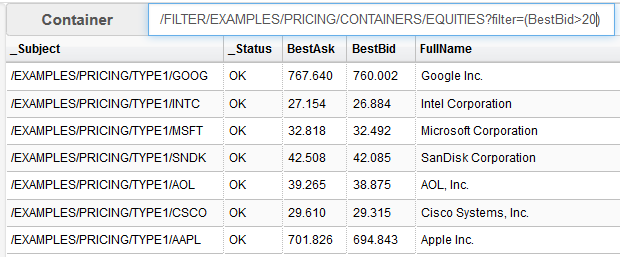
In Liberator Explorer, request `/FILTER/EXAMPLES/PRICING/CONTAINERS/EQUITIES?filter=(BestBid>20)`
Liberator routes this request to Transformer, because its RefinerService1 data service contains the `include-pattern ^/FILTER/` (have a look in the Liberator configuration file for the Refiner Service blade at `/kits/CPB_RefinerService/CPB_RefinerService-/Liberator/etc/rttp.conf`).
The `/FILTER` prefix directs Transformer to pass the request on to its Refiner module, which then returns just those instruments whose `BestBid` field is greater than `20`
## 6. Sort the container contents
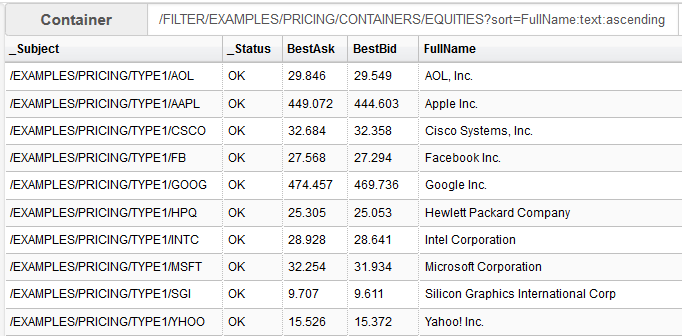
In Liberator Explorer, request `/FILTER/EXAMPLES/PRICING/CONTAINERS/EQUITIES?sort=FullName:text:ascending`
Now Refiner sorts the instruments in ascending alphabetical order of the `FullName` field:
**⚠️ WARNING**\
Frequent updates can have an adverse affect on the performance of Caplin Refiner, Liberator, and the requesting clients.
---
**See also:**
* [Refiner overview](transformer-refiner-overview.md)
* About [Liberator Explorer](../liberator/liberator-liberator-explorer.md)
* How can I... [Use Liberator Explorer to request and send data](../liberator/liberator-use-liberator-explorer-to-request-and-send-data.md)
* How can I... [Access Refiner through StreamLink](transformer-access-refiner-through-streamlink.md)
* How can I... [Filter and Sort in Refiner](transformer-refiner-filtering-and-sorting-rules.md)
* How can I... [Implement custom sorting and filtering in Refiner](transformer-implement-custom-sorting-and-filtering-in-refiner.md)
* How can I... [Configure Refiner](transformer-configuring-refiner.md)
* How can I... [Configure sorting and filtering](../../../caplin-trader/4/grid/grid-configure-sorting-and-filtering.md) (in Caplin Trader 4 grids).
* How can I... [Set Refiner user permissions and subject mappings](transformer-permissions-and-subject-mappings-for-filtered-containers.md)
* Reference: [Refiner configuration properties](transformer-refiner-configuration-properties.md)