# Create a JavaScript-based Transformer Service blade
Here we explain how to create a [Service blade](cdf-blade-types.md) for [Transformer](../transformer/index.md), where the blade is written as a Transformer pipeline modulein JavaScript programming language. The core of Transformer is written in C, so to create a module in JavaScript, you have to do it using [Transformer’s JavaScript Pipeline API](https://docs.caplin.com/developer/api/transformer_js_pipeline_sdk/latest/).
**📌 NOTE**\
If you’ve already read How Can I... [Create a Java-based Transformer Service blade](cdf-create-a-java-based-transformer-service-blade.md), you’ll notice that the Java blade described there does exactly the same thing as the blade we create here. This is entirely deliberate, and should allow you to see the differences and similarities between using Java and JavaScript for creating Transformer Service blades.
## Before you start
This example shows how to create a JavaScript-based Service blade called **SpreadJSBlade** that calculates the spread between Bid and Ask prices. At run time, the Transformer receives the prices from a Pricing Adapter (an [Integration Adapter](../platform-architecture/putting-data-into-the-platform.md)), and passes them on to the SpreadJSBlade pipeline module, which calculates the price spread from the Bid and Ask prices. The Transformer sends the prices, including the new `spread` field, on to a Liberator, which forwards them to subscribing client applications, as shown in this diagram:
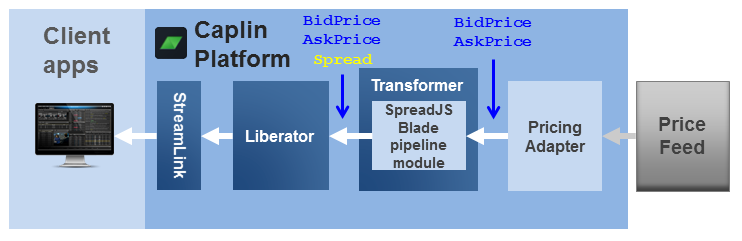
You’ll need a Transformer and [Liberator](../liberator/index.md) to help test your Service blade while you develop it, and a Pricing Adapter that can supply the Bid and Ask prices. In this example we’ve assumed that the corresponding record fields are called `bidPrice` and `askPrice` respectively.
If you don’t have Transformer and Liberator already deployed on a machine for this purpose, you’ll need to deploy one or both of these components to the Deployment Framework on your development machine. To do this, follow the instructions in How can I... [Deploy Platform components to the Framework](cdf-deploy-platform-components-to-the-framework.md). You won’t need to set up HTTPS connections or KeyMaster while you’re developing the blade, so you can ignore the topics about those things.
If you need to develop a suitable Pricing Adapter first, see How can I... [Create a Java-based Adapter blade](cdf-create-a-java-based-adapter-blade.md).
- 💡 TIP
-
In the following steps you’ll be using the `dfw` command of the Deployment Framework. Before entering any `dfw` command as `./dfw `, make sure your current (working) directory is set to the Deployment Framework’s topmost directory.
For a list of `dfw` commands, [click here](cdf-the-deployment-framework-command-utility-dfw.md).
### Blade structure
What’s in a JavaScript Service blade? Assuming the blade is located in in the Deployment Framework at `/kits///`, relative to this path:
* the blade’s [field definitions](../datasource/datasource-field-definitions.md) are in _blade_config/fields.conf_
* Liberator related configuration for the blade is in _Liberator/etc/rttpd.conf_
* Transformer related configuration for the blade is in _Transformer/etc/transformer.conf_
* the configuration for the JavaScript pipeline is in _Transformer/etc/pipeline.conf_
* the JavaScript source code for the pipeline is in _Transformer/etc/pipeline/<BladeName>.js_
## Summary
In brief, you create the blade using the following steps, which are given in more detail further down the page:
1. [Create the blade’s directory structure](#create-the-blades-directory-structure).
2. [Define the new fields](#define-the-new-fields).
3. [Update the core component configuration](#update-the-core-component-configuration):
1. [Define additional Liberator configuration](#define-additional-liberator-configuration).
2. [Define the JavaScript Pipeline configuration in Transformer](#define-the-javascript-pipeline-configuration-in-transformer).
4. [Integrate the initial core component configuration with the Deployment Framework](#integrate-the-initial-core-component-configuration-with-the-deployment-framework).
5. [Write the JavaScript for the Pipeline module](#write-the-javascript-module).
6. [Start the new Transformer Service blade](#start-the-new-transformer-service-blade).
7. [Package the new blade](#package-the-new-blade).
## Create the blade’s directory structure
In a directory that’s _outside_ the Deployment Framework (say _Temp_JS_blade_), create the following directory structure:
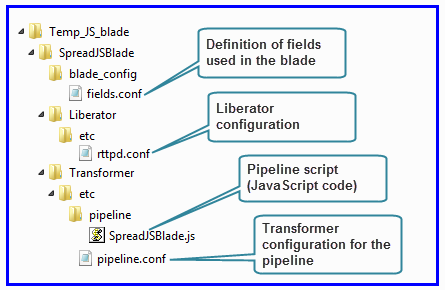
At this stage, you don’t need to create the `.conf` and `.js` files that are also shown in the structure - you’ll do that in subsequent steps.
## Define the new fields
The blade must define any new fields that it will use, which in this instance means our new `Spread` field.
1. Create a text file called **_fields.conf_** in `Temp_JS_blade/SpreadJSBlade/blade_config/`
2. Using a suitable text editor, add the following configuration to `fields.conf`
```
#
# Field definitions for the Transformer SpreadJSBlade
#
add-field Spread 45036
```
**💡 TIP**\
You don’t have to use the field number we’ve shown here; you can choose your own value as long as it’s unique within your particular Caplin Platform installation.
You don’t have to list in the _fields.conf_ file all the fields belonging to the incoming records that the blade will receive, because they’re already defined in the Pricing Adapter’s _fields.conf_ file. For example, The `BidPrice` and `AskPrice` fields used in the code samples further down this page would have been defined there. When you deploy your new SpreadJSBlade blade, the Deployment Framework will make the Pricing Adapter’s field definitions available to it (since the Pricing Adapter will also have been deployed as a blade).
For more about defining fields, see [Field definitions](../datasource/datasource-field-definitions.md) in the [DataSource](../datasource/index.md) Features and Concepts, and [Field definition format](../datasource/datasource-field-definition-format.md).
## Update the core component configuration
The new blade has to include configuration for the core Platform components that it interacts with. In this case, the core components are Liberator, which will subscribe to data supplied by the Transformer module, and Transformer, which houses the module.
### Define additional Liberator configuration
Configuration details for the Liberator are stored in the `rttpd.conf` file
1. Create a text file called _rttpd.conf_ in `Temp_JS_blade/SpreadJSBlade/Liberator/etc/`
2. Using a suitable text editor, add the following configuration to `rttpd.conf`
```
#
# Liberator configuration for data from
# the SpreadJSBlade JavaScript module blade.
#
add-data-service
service-name SpreadJSBlade${THIS_LEG}
include-pattern ^/FX/
add-source-group
required true
add-priority
remote-label transformer${THIS_LEG}
end-priority
if "${FAILOVER}" == "ENABLED"
add-priority
remote-label transformer${OTHER_LEG}
end-priority
endif
end-source-group
end-data-service
```
This configuration defines a [data service](../datasource/datasource-data-services.md) through which the Liberator requests the data supplied by the SpreadJSBlade. It also defines, through the `add-source-group ... end-source-group` block, how the Liberator should fail the data service over to an alternate Liberator (this only applies if failover has been enabled for the deployment - see How can I... [Set up server failover capability](cdf-set-up-server-failover-capability.md)).
This is fairly standard configuration. The important points to note are:
* The `service-name` configuration item defines the name of the data service, which in this case is (by convention) the name of the blade, **SpreadJSBlade**, that supplies the data.
* The `include-pattern` item specifies that the data service is to supply data for all [subscriptions](../datasource/datasource-subscriptions.md) whose [subjects](../datasource/datasource-subjects-symbols-and-fields.md) start with the string `/FX/`
* The macros `THIS_LEG` and `OTHER_LEG` are used to differentiate the configuration of [primary and secondary failover legs](cdf-set-up-server-failover-capability.md).
### Define the JavaScript Pipeline configuration in Transformer
Configuration details for the Transformer are kept in the `pipeline.conf` file. They identify the new SpreadJSBlade blade for Transformer, and define the location of its Pipeline components.
1. Create a text file called _pipeline.conf_ in `Temp_JS_blade/SpreadJSBlade/Transformer/etc/`
2. Using a suitable text editor, add the following configuration to `pipeline.conf`
```
#
# Transformer pipeline module configuration for the
# SpreadJSBlade JavaScript-based Transformer Service Blade.
#
pipeline-paths ${ccd}/pipeline
add-pipeline
id SpreadJSBlade${THIS_LEG}
pipeline-file SpreadJSBlade.js
listener-regex ^/FX/.*
flags suppressupdate
update-func update
end-pipeline
```
The important points to note about this configuration are:
* The blade name is used both as the pipeline’s `id`, and in name of the JavaScript module defined by the `pipeline-file` configuration option.
* The `ccd` macro defines the current directory path of the file in which it is referenced. So in this example, when the blade is deployed, the `ccd` reference will be in in the file <Framework-root>/kits/SpreadJSBlade/SpreadJSBlade/Transformer/etc/**pipeline.conf**, `ccd` will then define the path `/kits/SpreadJSBlade/SpreadJSBlade/Transformer/etc/.`
* The line `pipeline-paths ${ccd}/pipeline/` instructs _Transformer_ to look for the blade’s pipeline files in the relative directory `SpreadJSBlade/Transformer/etc/pipeline/` (as per the `ccd` macro explained above).
* The line pipeline-file `SpreadJSBlade.js` defines the name of the file where the pipeline module’s JavaScript code is located
* The line `flags suppressupdate` means that messages received by your JavaScript pipeline module are not sent on automatically, so you will have to do it explicitly in the pipeline module’s JavaScript code (see the call to `packet.send()` in [the JavaScript module](#write-the-javascript-module) below).
* The line `update-func update` defines the name of the JavaScript function (in the `pipeline-file`) that is called every time a record is passed to the pipeline module.
That’s all the configuration changes you need for the time being.
### Integrate the initial core component configuration with the Deployment Framework
Now you’ve created the initial configuration for the core components that use your Transformer Service blade, you can deploy this configuration in your development environment.
1. ZIP up the blade directory structure in your temporary work area into a skeleton blade kit, The `.zip` file must have a name of the form _<blade_name>-<version_number>. .zip_
The topmost directory in the `.zip` file must be the top level directory of the blade.
So in our example:
The `.zip` filename is _SpreadJSBlade-<version_number>.zip_ (say `SpreadJSBlade-000001.zip`),
The topmost directory in the `.zip` file is _SpreadJSBlade_.
2. Navigate to `` and deploy the skeleton blade kit:
```
./dfw deploy ../Temp_JS_blade/SpreadJSBlade-000001.zip
```
The `./dfw deploy` command should respond with:
```
Boot-strapping the Deployment Framework
Unpacking SpreadJSBlade kit SpreadJSBlade-000001.zip
SpreadJSBlade-000001.zip successfully unpacked and stored in kits/archive
Activating SpreadJSBlade
Blades ok
```
And then `./dfw versions` should show the new blade:
```
Deployment Framework 6.0.4-267113
Core components Version
-----------------------------------------------------------
Liberator 6.1.0-275608
Transformer 6.1.0-275716
Deployed blades Version State
-----------------------------------------------------------
PricingAdapter 2013.09.27.1138 Active
SpreadJSBlade Active
Built-in blades State
-----------------------------------------------------------
BlotterExport Inactive
DemoDataSource Inactive
DirectConnection Active
HTTP Active
HTTPS Inactive
JavaOpenPermissioning Inactive
LiberatorJMX Active
LiberatorWebsite Active
MinimalLiberatorWebsite Inactive
OpenPermissioning Active
ServerIdentification Active
TransformerJMX Active
```
Note that deploying the skeleton SpreadJSBlade has automatically put it in the [active](cdf-active-and-inactive-blades.md) state.
3. Start the deployed core components and the SpreadJSBlade blade:
```
./dfw start
```
At this stage the Liberator and Transformer are running with the new configuration. The new blade won’t run of course, because no executable code has been written for the JavaScript pipeline module.
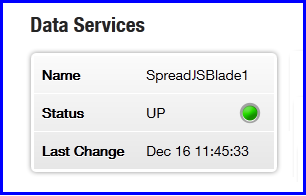
In a Web browser, navigate to the [Liberator’s status page](../liberator/liberator-liberator-status-web-page.md), where you should see the **SpreadJSBlade** data service:
**💡 TIP**\
The URL of the Liberator is of the form http://<URL_of_liberator_server>:<liberator_port>. You can find the `` and `` by entering the command `./dfw info`. In a development environment, the URL would typically be http://localhost:18080. When the Liberator home page is displayed, select the View Status button.
## Write the JavaScript module
You write the functional part of the blade in JavaScript in the **_SpreadJSBlade.js_** file:
1. Create a text file called _SpreadJSBlade.js_ in `/kits/SpreadJSBlade/SpreadJSBlade/Transformer/etc/pipeline/`
2. Using a suitable text editor, add the following JavaScript code to `SpreadJSBlade.js`
```js
var log = require("log");
function update(packet)
{
var subject = packet.getSubject();
var bidPrice = packet.getField("BidPrice");
var askPrice = packet.getField("AskPrice");
var spread = askPrice.value - bidPrice.value;
log.log(log.INFO, "Spread for <" + subject + "> is " + spread + "\n");
packet.setField("Spread", spread);
packet.send();
}
```
The script should be fairly easy to follow:
* `var log = require("log")` imports the JavaScript pipeline’s Logging API.
* An `update` function is defined, which obtains the `BidPrice` and `AskPrice` fields from each incoming record whose [subject](../datasource/datasource-subjects-symbols-and-fields.md) begins with `/FX/` (the Transformer’s [pipeline module configuration for the SpreadJSBlade](#define-the-javascript-pipeline-configuration-in-transformer) controls which records are selected - see the line `listener-regex ^/FX/.*`). Note that the name of this function must match that defined in the `update-func` option in the pipeline module configuration.
* After obtaining the subject name of the incoming record, the function obtains the `bidPrice` and `askPrice` fields from the record and uses them to calculate the spread.
* The logging API (`log.log()`) is called to log the spread calculated for the subject.
* The new `Spread` field is then added to the record (`packet.setField()`) and the record is sent on to the Liberator (`packet.send()`).
## Start the new Transformer Service blade
1. If you have exclusive use of the Pricing Adapter in your development environment, restart the whole system on your development server machine: `./dfw start`
This stops the deployed core components and the Pricing Adapter blade and restarts them; in this case the Liberator, Transformer, and the new Integration Adapter. (The command works out from the configured hostname settings which components it needs to start on the machine where the command is running.)
2. Alternatively, if you share the Pricing Adapter with other developers so you don’t want to shut it down just to get your new Integration Adapter running:
1. Make sure the Pricing Adapter is running:
```
./dfw status
```
2. Then start the Liberator and Transformer:
```
./dfw start Liberator
```
```
./dfw start Transformer
```
3. When the everything is running:
1. Look at the Liberator’s status page to check that the Liberator is connected to the Transformer and can see the data service (`SpreadJSBlade` in our example) for which the new JavaScript-based Transformer Service blade supplies data.
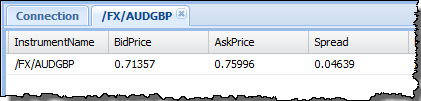
2. Use the Liberator’s [Liberator Explorer](../liberator/liberator-liberator-explorer.md) to request data for the relevant subjects supplied by the Transformer Service blade, and check that the data is returned (via Transformer) as expected, with a correctly calculated `Spread` field included.
## Package the new blade
When you’ve developed and tested the new blade to your satisfaction, you’ll need to package it up so it can be deployed on your production system - see How can I... [Package a custom blade](cdf-package-a-custom-blade.md).
---
**See also:**
* [Package a custom blade](cdf-package-a-custom-blade.md)
* [Set up server failover capability](cdf-set-up-server-failover-capability.md)
* [Deploy Platform components to the Framework](cdf-deploy-platform-components-to-the-framework.md)
* [Create a Java-based Transformer Service blade](cdf-create-a-java-based-transformer-service-blade.md)
* [Start and stop components and blades](cdf-start-and-stop-components-and-blades.md)
* Reference: [Transformer’s JavaScript Pipeline API Documentation](https://docs.caplin.com/developer/api/transformer_js_pipeline_sdk/latest/)
* Reference: [Transformer Pipeline configuration](../transformer/transformer-pipeline-configuration.md)