# Add and remove default layouts
This tutorial shows you how to add and remove predefined layouts using _Webcentric_. It uses the _FxTrader_ motif as an example, and assumes that you have some knowledge of Webcentric’s XML layouts. Have a look at the [Webcentric Worked Example](webcentric-worked-example.md) if you need to swot up!
## Predefined Layouts
**📌 NOTE**\
"Layouts" in this case don’t just refer to the general layout of a particular screen. A _Webcentric_ window can have one or more tabs, each of which takes up the whole window, and may have completely different content. Each of these tabs is called a layout, and your app may have one or more of them defined by default.
If you’ve got the _FxTrader_ application up and running, then your layout configuration file consists of a predefined layout, and will look something like this:
```
default-aspect\webcentric\layout\layoutConfiguration.xml
```
```xml
```
An application can consist of several predefined layouts, some of which are default layouts that always appear when the application is opened, and which cannot be closed. Others must be opened by the user, and then deserialised from the _Webcentric_ layout database, before being rendered.
In an application with several predefined layouts, it’s possible to set which ones are default and which are not, by setting the `defaultLayout` attribute, like this:
```
default-aspect\webcentric\layout\layoutConfiguration.xml
```
```xml
```
You would then need to populate an XML file for each layout with something to be displayed. For the sake of simplicity, we’ll assume that each of them has a single, rather minimalist panel, like so:
```
default-aspect\webcentric\layout\layouts\layout_A(/B/C/D).xml
```
```xml
```
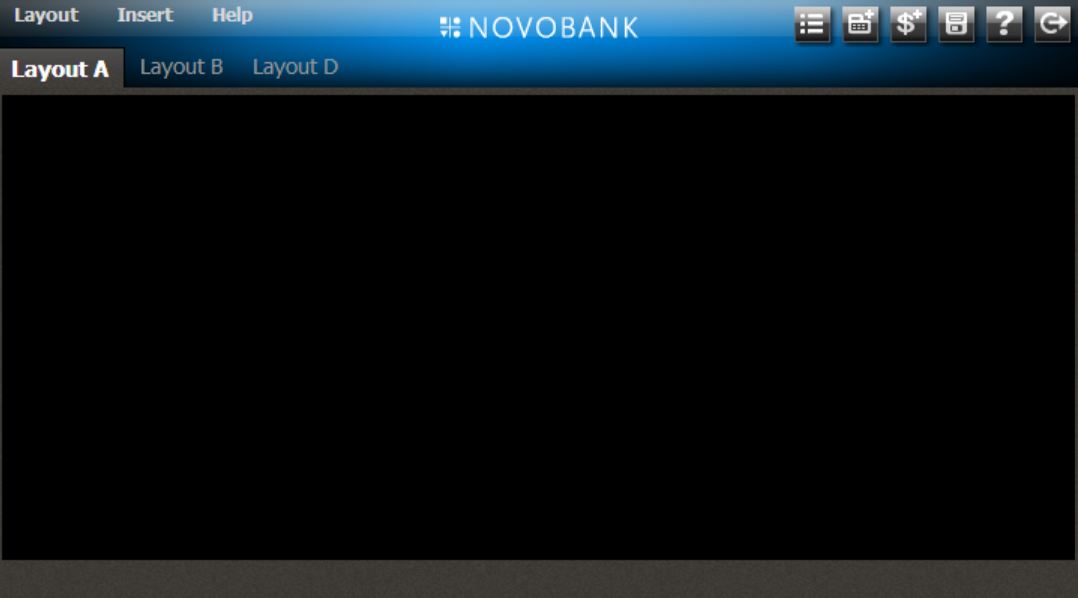
In this application, _layout_A_ and _layout_B_ are loaded by default. _Layout_C_ and _layout_D_ must be opened by the user.
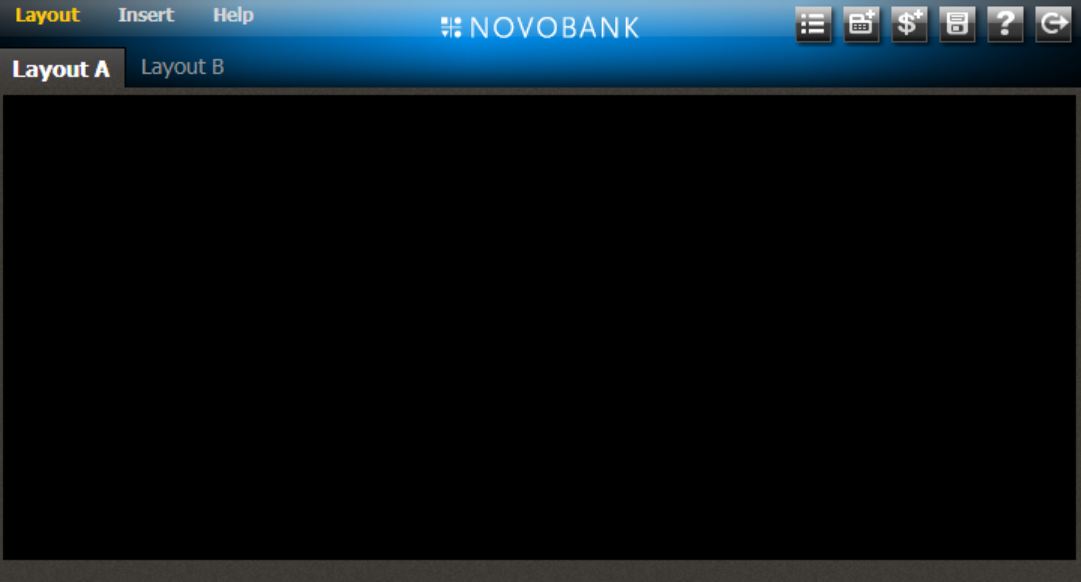
If a user alters the layout settings in any way and then logs out, the default layouts for that user will be adjusted accordingly. Therefore if a user opens _layout_D_ and then logs out, the next time that same user logs in, the default application layout displayed, will consist of layouts _A_, _B_ and _D_.