# Create a ticket dialog
This tutorial explains how pop-up dialog boxes work in _Webcentric_, and shows you how to use either JavaScript or XML to trigger an _FX Ticket dialog_.
**📌 NOTE**\
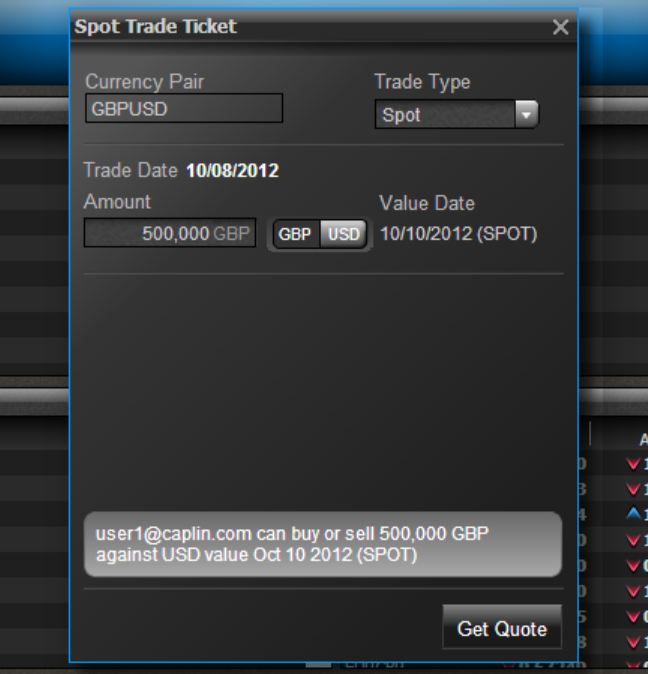
The following example is for purely illustrative purposes, showing how you would go about implementing a ticket dialog using your own Presenter component.
## Pop-up Dialog Boxes in Webcentric
As well as the **Terraces**, **Towers** and **Stacks** of **panels** that _Webcentric_ uses to create screen layouts, it also provides windowing components such as _menus_ and _popup dialogs_. This tutorial will show you how to create a popup dialog containing a _trade ticket_, which is a popular use for dialog boxes in trading applications. They are also commonly used as component selectors; or forms for submitting and saving data.
The _[Webcentric API,opts="nofollow"](https://docs.caplin.com/developer/api/caplin_trader/3/caplin.webcentric)_ provides a service through which new dialogs and panels can be created within the application, which is called the `WebcentricFrameManager`; an implementation of the `[FrameManager,opts="nofollow"](https://docs.caplin.com/developer/api/caplin_trader/3/caplin.component.frame.framemanager)` interface offered in the Caplin core library set. `FrameManager` provides the necessary interface to open dialogs containing a resident component.
If you’ve got a _Webcentric_ application up and running (such as _FxTrader_, which we will be using for our examples), it creates a new instance of ``WebcentricFrameManager``service as it is loading, and registers it as a service on the `[ServiceRegistry,opts="nofollow"](https://docs.caplin.com/developer/api/caplin_trader/3/caplin.core.serviceregistry)`. The call you will make is actually to the `FrameManager` interface directly, but the `WebcentricFrameManager` implementation will be used implicitly.
## Creating an FX Ticket Dialog
What we’re going to do in this tutorial is to create a dialog containing a ticket component, that will pop-up and display on the screen when we trigger it. The best way to actually construct a ticket (or any similar form-based component), is by utilising the _[Presenter](../presenter/index.md)_ library. For the sake of this tutorial, we’re going to be using the ticket component already implemented in the _ticket blade_ in _FxTrader_.
### Using JavaScript
Executing the following piece of code after _Webcentric_ has loaded, will cause a ticket dialog to appear on screen:
```js
var oFrameManagerService = caplin.core.ServiceRegistry.getService("caplin.frame-manager-service");
var oComponent = caplin.component.ComponentFactory.createComponent("");
var sCaption = "your.presenter.template_id";
var nWidth = 356;
var nHeight = 455;
var oFrameCreationListener = {onFrameReady:function(oFrameComponent){}};
oFrameManagerService.openDialog(oComponent, sCaption, nWidth, nHeight, oFrameCreationListener);
```
The first line gets a reference to the `FrameManager` (which as you’ll remember, calls the `WebcentricFrameManager` class) from the `ServiceRegistry`. Next, the ticket component is created using the component library. Finally, the `openDialog()` method is called to display the dialog on screen.
### Using XML
You can also create _Webcentric_ dialogs via actions defined in the _Webcentric_ XML configuration. The `[](https://docs.caplin.com/developer/xml/webcentric/latest/showDialog.html)` action can be placed within a `