# Use renderers in grids

_Renderers_ are easily embeddable in grids. When configuring a column, all you need to do is include the name of the renderer and the grid will automatically instantiate the renderer in the cell. Before reading this section you should probably be familiar with the _[Grid library](../grid/index.md)_.

## Starting point

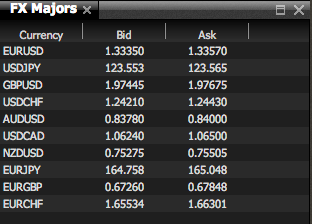
Here’s a grid without any renderers in the cells. it just displays the raw format from the container of data supplied by _Liberator:_
![renderer-grid-start](../../../images/renderer-grid-start.png)

Here’s the grid’s configuration:

```xml
<grid id="fxmotif.fxtrader.grid.exampleGrid" baseTemplate="fxmotif.fxtrader.sortableGrid"
   displayedColumns="description, bestbid, bestask">
   <columnDefinitions>
      <column id="description" fields="InstrumentDescription" displayName="Currency" 
          width="80" mandatory="true"/>
      <column id="bestbid" fields="BestBid" displayName="BestBid" width="80"/>
      <column id="bestask" fields="BestAsk" displayName="BestAsk" width="80"/>
   </columnDefinitions>
   <gridRowModel>
      <caplin.rttp-container-grid-data-provider container="/CONTAINER/FX/Major"/>
   </gridRowModel>  
</grid>
```

## Create a renderer

Let’s flash the rows in the grid depending on whether the price goes up or down. We create a renderer that uses a _flash styler_:

```xml
<renderer type="fxmotif.fxtrader.grid.exampleFlash">
  <control className="caplin.control.basic.TextControl"/>  
  <downstream>
   <transform className="caplin.element.styler.ClassFlashStyler">
    <attribute name="duration" value="500"/>
    <attribute name="onAncestor" value="1"/>
   </transform>
  </downstream>
</renderer>
```

## Include it in the grid config

Now we tell the grid to use our new renderer:

```xml
<grid id="fxmotif.fxtrader.grid.exampleGrid" baseTemplate="fxmotif.fxtrader.sortableGrid"
   displayedColumns="description, bestbid, bestask">
   <columnDefinitions>
      <column id="description" fields="InstrumentDescription"displayName="Currency" width="80" 
          mandatory="true" />
      <column id="bestbid" fields="BestBid" cellRenderer="fxmotif.fxtrader.grid.exampleFlash" 
          displayName="BestBid" width="80" />
      <column id="bestask" fields="BestAsk" cellRenderer="fxmotif.fxtrader.grid.exampleFlash" 
          displayName="BestAsk" width="80" />
   </columnDefinitions>
   <gridRowModel>
      <caplin.rttp-container-grid-data-provider
          container="/CONTAINER/FX/Major" />
   </gridRowModel>
</grid>
```

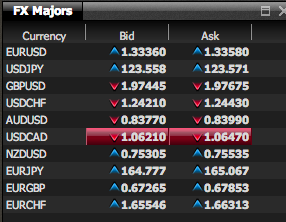
Note that we added the attribute `cellRenderer` to the `[<column>](https://docs.caplin.com/developer/xml/grid/latest/column.html)` tag. Reload the application or workbench and you will see the grid cells now have the class `flashing-up` or `flashing-down` applied to them when the price changes up or down. The classes `last-up` and `last-down` are also applied after 500ms so you can add a style if you want the user to know the last movement of this instrument. Add your CSS styling for classes mentioned above and you should end up with something like this
![renderer-grid-finished](../../../images/renderer-grid-finished.png)
