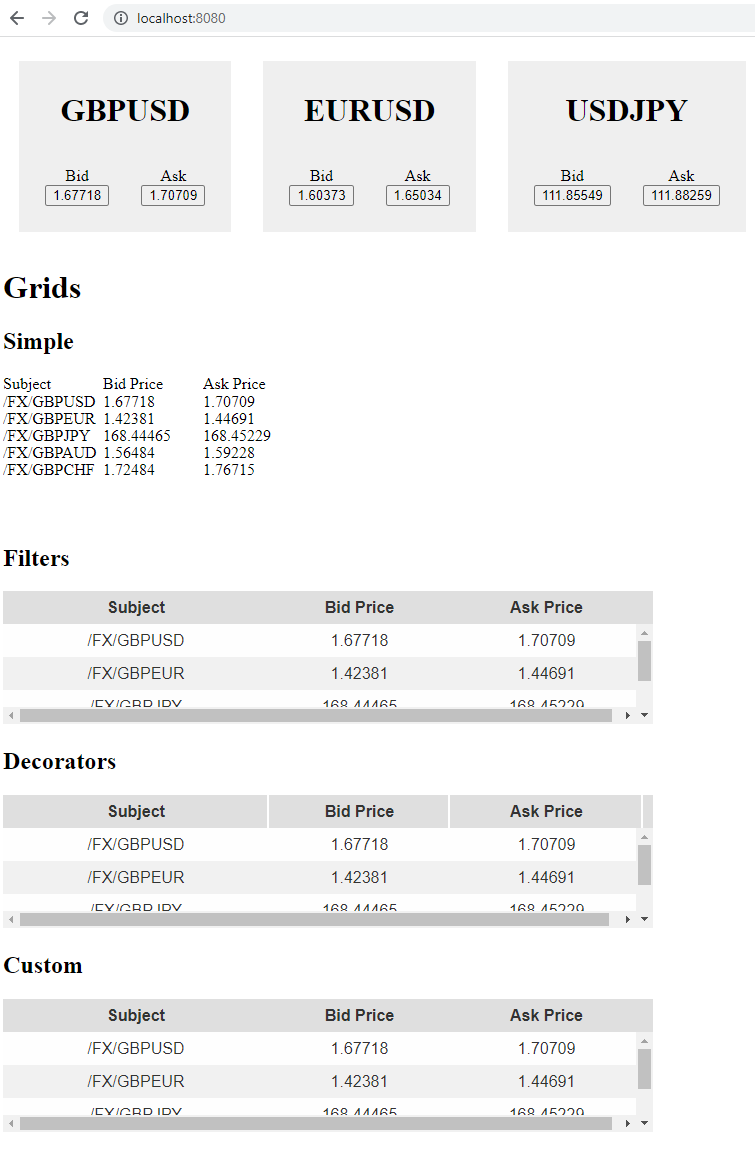
# Grids
In this tutorial we’ll go through adding some Caplin Grids to your application, and try adding custom functionality.
## Objectives
* Create a grid to display on your application’s page.
* Create some custom functionality.
* Use some grid decorators to enhance your grid.
## Getting started
There are a few steps to follow before you can start experimenting with grids.
1. Check you have the following dependencies in `apps/tile/package.json` file.
```json
"br": "workspace:*",
"br-services": "workspace:*",
"ct-popout": "workspace:*",
"ct-services": "workspace:*",
"ct-grid": "workspace:*",
"ct-element": "workspace:*",
"ct-stream": "workspace:*",
"ct-control": "workspace:*"
```
2. The `myTradingApplication/apps/tile/src/grids` file contains all the implementations you need to create different types of grids.
3. Add some of the standard CT5 aliases that the grid libraries use to the `apps/tile/src/config/aliases.js` file:
```js
const brAliasProviders = require("br-services/aliasProviders");
const ctGridAliasProviders = require("ct-grid/aliasProviders");
const ctServicesAliasProviders = require("ct-services/aliasProviders");
const ctPopoutAliasProviders = require("ct-popout/aliasProviders");
module.exports = Object.assign({
"caplin.grid.refine.multiple-text-refine-component": function() {
return require("ct-grid/refine/component/MultipleTextRefinerComponentFactory");
}
},
brAliasProviders, ctGridAliasProviders, ctServicesAliasProviders, ctPopoutAliasProviders);
```
4. In the `apps/tile/src/index.js` file, you can render all the grid templates using the following:
```js
import startGridDemo from "./grids/gridDemo";
```
5. Then in the same `apps/tile/src/index.js` file add the highlighted line:
```js
if (!ServiceRegistry.isServiceRegistered("caplin.streamlink.StreamLink")) {
const streamLink = StreamLinkFactory.create({
username: "admin",
password: "admin",
liberator_urls: "rttp://localhost:18080",
});
streamLink.connect();
startGridDemo(streamLink);
ServiceRegistry.registerService("caplin.streamlink.StreamLink", streamLink);
}
```
6. In the `apps/tile/index.html` file uncomment the following line:
```html
```
This enables the CT5 i18n library which is used internally by all our components.
Refresh your browser page to see the grids.
## Grid templates
There are three grid templates, and a fourth "Custom" grid template that you can play around with. The three grid templates are:
* ***Simple*** - A very basic grid that renders the minimum amount of UI to load the grid.
* ***Filters*** - A grid with some simple styling applied, and sorting/filtering enabled. You can click on the column headers to apply the sorting/filtering.
* ***Decorators*** - A grid with some simple styling applied, and some standard decorators to enable features such as:
* column reordering
* column resizing
* a tooltip in the bottom right corner showing the current scroll position and container size.
Take a moment to look at the source of these grids. The folder for each grid template contains all the source code necessary to render that template.
You should see how features such as filtering, column reordering, styling are all applied by looking at the source code for each template.
## Configure a custom grid
We’re going to try and replicate the features of the template grids in the custom grid.
* Can you enable sorting and filtering by adding the correct headerRenderer attributes to your grid columns? These are applied in `gridDefinitions.xml`, see the ***filters*** template for an example.
* Can you add the column reordering, column resizing, and scroll position tooltip decorators to enable those features?
## Write a custom formatter
At the moment the ***Subject*** column shows the full subject. Can you write a formatter that removes the `/FX/` prefix and just displays the currency pair?
A formatter is an instance of the `ct-element/Formatter` JavaScript class. You need to create your own formatter class that extends this base class. It needs a single method called `format`, which takes the current value and returns the new value.
1. Create and add a file named `MyFormtter.js` in your `grids/custom` folder:
```js
import Formatter from "ct-element/Formatter";
class MyFormatter extends Formatter {
format(currentValue) {
const currencyPair = currentValue
? currentValue.replace("/FX/", "")
: currentValue;
return currencyPair;
}
}
export default new MyFormatter();
```
2. In the `grids/custom/setup.js` file, register your formatter with the `BehaviorFactory`:
```js
import MyFormatter from "/ MyFormatter"; // import the formatter you created
BehaviorFactory.BEHAVIOUR_CLASSES[
"caplin.removeFxFormatter"
] = MyFormatter;
```
3. Create a new renderer for it in the existing `apps/tile/src/grids/custom/rendererDefinitions.xml` file:
```xml
```
4. Add the renderer to the `create.js` in path `grids/custom/create.js`. Add an import for `rendererDefinitions.xml` to your `\myTradingApplication\apps\tile\src\grids\custom\create.js`.
```js
import "./setup.js";
import "./gridDefinitions.xml";
import "./rendererDefinitions.xml";
import "./styling.less";
```
5. In the `apps/tile/src/grids/custom/gridDefinitions.xml` file make the `InstrumentName` column use the following code as its `cellRenderer`:
```xml
```
Have a look at your grids by going to http://localhost:8080.